Back button
Click this button to go back to the window you were viewing previously.
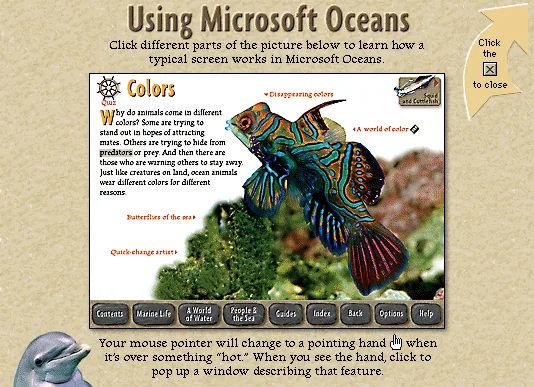
Everything you need to dive in and explore the ocean world!
Click different parts of the picture below to learn how a typical screen works in Microsoft Oceans.
Click this button to go back to the window you were viewing previously.
Click this button to display the Contents screen, where you can choose from four different ways to explore Microsoft Oceans on your own, or choose a guided tour.
Click words with tan backgrounds to display their definitions. Click the sound icon to hear a pronunciation.
Click this button to display the Guides screen, where you can choose a character to lead you on one of several guided tours. During a tour, a guide button replaces the normal jump button in the upper-right corner of the screen. Click the guide button to go to the next article in the tour.
Click this button to display the main Help window, where you can choose help on Using Microsoft Oceans (which you are using right now), Using the Options Menu, or Troubleshooting. You can also display the About Microsoft Oceans window and credits.
Click this button to display the Index screen, where you can choose any article by clicking its picture or title. All articles are listed alphabetically by title. You can scroll through the Index by clicking the left arrow or right arrow buttons, or go to the beginning of a particular letter by clicking that letter in the alphabet bar. To find information about a specific topic, type the first few letters in the Find: box, or click the Find box and scroll through the list. When you see the topic you want in the list box, click the topic and then click OK to go to the article that discusses that topic.
Click this button to go to a related article.
Click this button to display the Marine Life screen, where you can choose an article to explore.
Click this button to display the Options window, where you can choose to create wallpaper for your Windows desktop with pictures in the Picture Gallery; install screen savers; control sounds; print a screen; or automatically jump through articles in random order. You can get more information about these options by choosing Using the Options Menu from the main Help window.
Click this button to display the People & the Sea screen, where you can choose an article to explore.
Click red text to pop up a window with additional pictures and information. Clicking red text next to a video icon opens a window containing a video. The video will play automatically. Click the video to play it again. To close any pop-up window and return to the previous window, click the Close button in the upper-right corner.
Click this button to display a quiz about the information contained in the main screen and in the pop-up windows.
Click this button to display the A World of Water screen, where you can choose an article to explore.
Source: Microsoft Oceans (1995) CD-ROM. Text liberated from original screen art; images, audio & clips restored from disc. Original media is Microsoft/supplier copyright — non-commercial educational preservation. Credits & Acknowledgements